The most common worry from first-time Linux users isn’t about software — it’s about hardware. Will my WiFi work? Will my printer work? Will anything break? These are reasonable questions, and the honest answer is: Linux hardware support in 2025 is dramatically better than its reputation. Here’s exactly what to expect.
The Big Picture: Linux and Hardware
Linux runs on a wider range of hardware than any other operating system. It powers servers, supercomputers, smartphones (via Android), smart TVs, routers, industrial controllers, and yes, ordinary desktop and laptop computers. The Linux kernel includes drivers for an enormous range of devices, and major distributions ship with most of those drivers included.
The irony of the Windows 11 situation is that hardware Microsoft refuses to support, Linux handles without complaint. A 2012-era laptop with an Intel Core i5, 4GB of RAM, and a 128GB SSD is not a Linux challenge — it’s a Linux sweet spot.
Minimum Requirements by Use Case
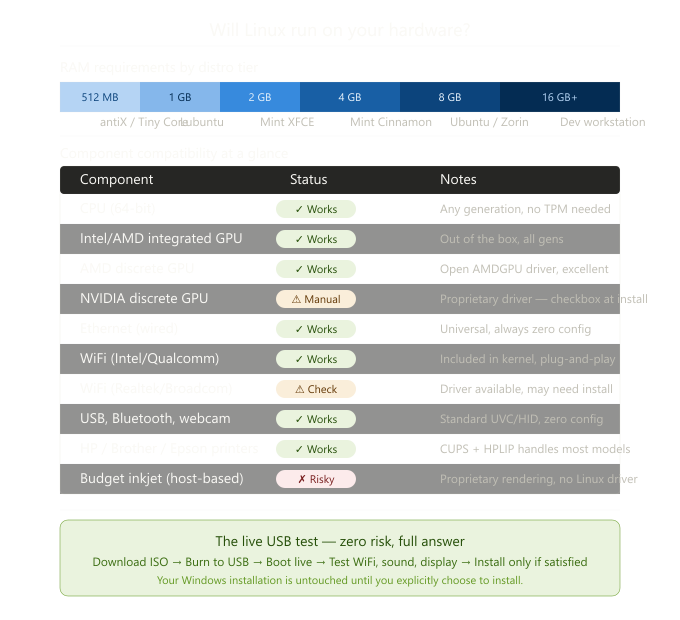
For modern mainstream distributions like Linux Mint or Ubuntu, you need roughly: a 64-bit processor (any CPU made after 2007 qualifies), 2GB of RAM minimum (4GB recommended for comfortable use), and 20GB of disk space. That’s the floor. On those specs, you get a full graphical desktop, web browser, office suite, and media playback.
If your machine has less RAM, lightweight distributions step in. With 1GB of RAM, Lubuntu (which uses the LXQt desktop) runs well. With 512MB, antiX Linux — based on Debian — provides a complete environment that fits in RAM and launches faster than a modern Windows machine takes to show its login screen. For genuinely ancient hardware — the kind running 32-bit processors — specialized distros like Tiny Core Linux can resurrect machines that haven’t been useful in a decade.
For reference, the hardware floor for a functional 2025 Linux desktop is lower than the hardware floor for a comfortable Windows XP experience was in 2002. The OS has not gotten heavier at the rate hardware has aged.
CPUs: No Restrictions
Linux imposes no CPU generation requirements beyond 64-bit support. Intel Core 2 Duo, first-generation Core i3, i5, and i7 from 2009-2012, AMD Phenom II, and similar vintage processors all work. There is no “minimum generation” gate like Windows 11’s 8th-generation Intel or Ryzen 2000 series requirement. If the chip is 64-bit, mainstream Linux runs on it.
RAM: The Practical Ceiling
RAM is the biggest factor in day-to-day feel. With 4GB, Linux Mint runs comfortably with a browser, a document editor, and a few tabs open. With 8GB, you can run a virtual machine alongside your normal workflow. With 2GB, performance is usable but snug — closing unnecessary applications becomes a habit. With 1GB, you’re choosing a lighter desktop environment like XFCE or LXQt, but the system is still functional.
In many cases, adding RAM is the single cheapest upgrade you can make. DDR3 memory for 2010-2015 laptops costs very little on the used market, and going from 4GB to 8GB in a machine that runs Linux can transform the feel of the system for under $20.
WiFi: The One Honest Caveat
WiFi is where Linux compatibility has historically been imperfect, and it’s worth being honest: some older or budget WiFi chips require additional driver installation. Realtek chips — common in budget laptops — sometimes need a manual driver install. Broadcom chips, found in many older Apple MacBooks and some Dell models, require a specific firmware package that’s freely available but not always installed by default.
The solution is simple: before committing to Linux on any machine, boot from a live USB and test WiFi. If it works in the live environment, it will work after installation. If it doesn’t, check your chipset on the Linux hardware database (linux-hardware.org) and confirm driver availability before installing.
Ethernet almost always works immediately, without any configuration. If you’re setting up a desktop that’s near your router, a wired connection during the initial setup sidesteps any WiFi issues entirely.
Printers: Better Than You’ve Heard
Printer support on Linux is significantly better than its reputation suggests. The CUPS printing system handles most modern printers from HP, Canon, Brother, and Epson automatically — plug in via USB or connect via the network, and the printer appears in your application’s print dialog. HP has an open-source driver project (HPLIP) that supports hundreds of their devices explicitly. Brother provides Linux drivers directly on their support website.
The exceptions are budget inkjets with proprietary host-based rendering — the kind where the printer itself is dumb and the computer does all the processing work. These sometimes require manufacturer drivers that don’t exist for Linux. If you’re buying a new printer and plan to run Linux, Brother laser printers have the best Linux track record across the industry.
What Just Works
The following hardware categories work out of the box on mainstream Linux distributions: Intel integrated graphics (any generation), AMD integrated and discrete graphics (via open-source AMDGPU driver, which is excellent), keyboards, mice, USB storage, Bluetooth (mostly), monitors at any resolution including 4K HiDPI, webcams (UVC standard), most Ethernet adapters, most USB-C hubs, and external speakers and headphones via standard audio interfaces.
NVIDIA discrete GPUs work but require a proprietary driver. Major distros offer this during installation as an option — it’s not automatic, but it’s a checkbox, not a command line.
The Test-First Principle
Every major Linux distribution ships as a live image. You burn it to a USB drive, boot from it, and get a fully functional desktop — running entirely from the USB, without touching your hard drive or modifying your existing Windows installation. This is the definitive hardware compatibility test. Spend 30 minutes in the live environment: browse the web, check that audio works, confirm WiFi connects, print a test page. If those work in the live session, they will work when installed. If something doesn’t work, you’ve lost nothing.